|
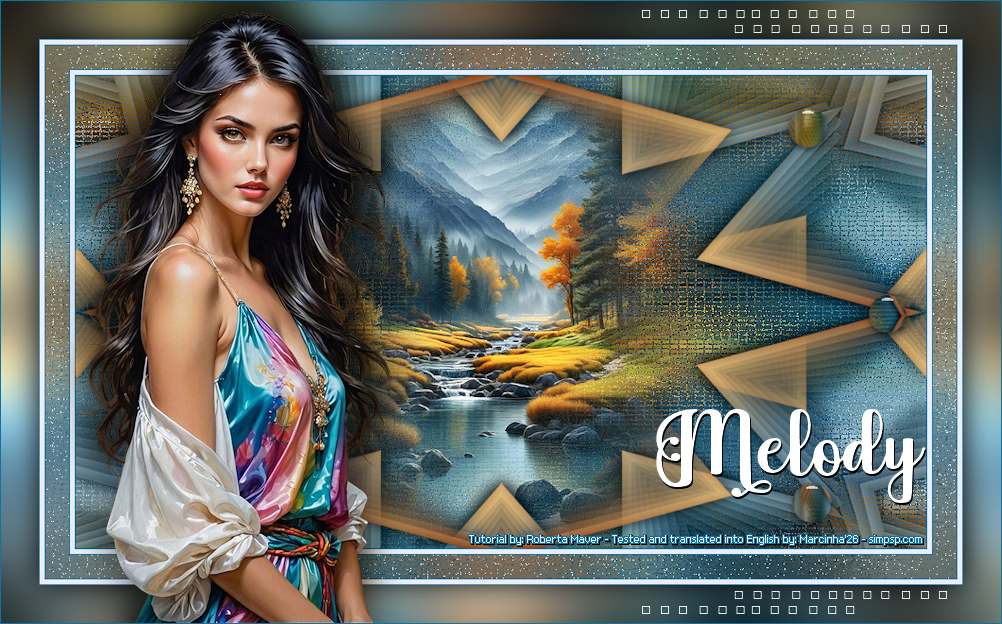
Translated into English by Márcinha
Original Tutorial:
|
IMPORTANT:
Sim PSP and its tutorial authors kindly
ask that:
- Please
keep the tutorial original,
refraining from adding or including unrequested
effects;
- The use of
other images is permitted and encouraged, however, we ask that you do not
modify the content of the original tutorial;
- Please
acknowledge and give due credit to
those who write tutorials, do
translations, and create the
materials.
Note:
This tutorial was written by Roberta
Maver, and is
her sole responsibility.
Any resemblance to other tutorials is
purely coincidental.
Sim PSP only hosts and shares this so
that everyone can access and enjoy the
content.
Sincerely,
SIM PSP and Roberta Maver |
|
Tutorial made in PSP 2022
Tutorial tested, reviewed and translated into English by Márcinha in PSP 2020
SUPPLIES:
1 Main Tube of your choice
1 Misted Landscape of your choice
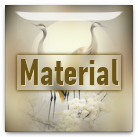
* Save the Melody_byRobertaM selection to the PSP
Selections folder.
PLUGINS:
Eye Candy 5 Impact >
Glass
Graphics Plus > Cross Shadow
*****************
I would like to thank the
tube and mask artists, without whom this project would not have been
possible.
When sharing or using their work, please keep the Tubes intact and
give proper credit to the creators.
Feel free to adjust the
Blend Modes to match the colors you are using.
Colorize the decorative elements whenever necessary, according to
the colors you have chosen.
*****************
TUTORIAL
1 - Open the material in PSP, duplicate it, and close the original.
*Delete the watermark from
all the materials.
Choose two colors to work with.
Foreground #e7eef8
Background #15729e

2 - Open a transparent image 900 x 500 px.
Fill it with the Background color #15729e
Selections > Select All.
Edit > Copy from the Misted Landscape
Edit > Paste Into Selection.
Adjust > Sharpness > Sharpen.
Selections > Select None.
3 - Effects > Image Effects > Seamless Tiling: Default.
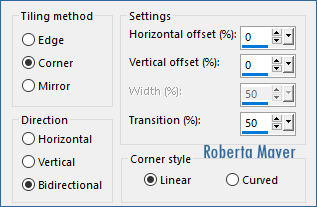
4 - Adjust > Blur > Radial Blur:
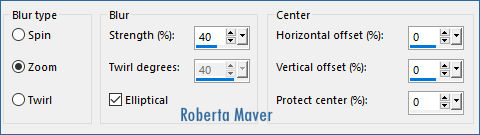
Adjust > Sharpness > Sharpen More.
5 - Effects > Texture Effects > Mosaic - Antique.
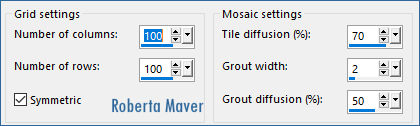
Adjust > Sharpness > Sharpen More.
6 - Edit > Copy from the Misted Landscape.
Edit > Paste As New Layer.
Image > Resize, if necessary. On the material's tube, 80% was applied.
Position it harmoniously in the center.
Adjust > Sharpness > Sharpen.
7 - Edit > Copy from the Decor01_Melody_byRobertaMaver file.
Edit > Paste As New Layer.
Layers > Properties > General > Blend Mode: Luminance (L) - Opacity:
100%
8 - Edit > Copy from the Decor02_Melody_byRobertaMaver file.
Edit > Paste As New Layer.
Layers > Properties > General > Blend Mode:
Normal: Opacity: 100%
In the 2nd version I applied:
Layers > Properties > General > Blend Mode: Hard Light or
Overlay: Opacity: 100%
Edit > Copy Special > Copy Merged.
9 - Layers > New Raster Layer.
Selections > Load/Save Selection > Load Selection From Disk:
Melody_byRobertaMaver
Edit > Paste Into Selection.
Selections > Select None.
10 - Effects > Plugins > Alien Skin > Eye Candy 5 Impact >
Glass:
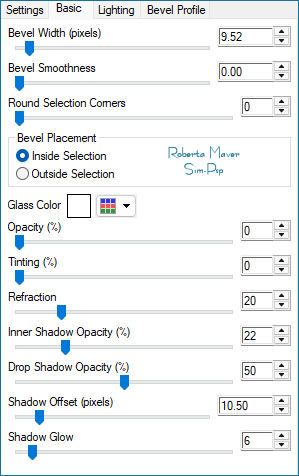
11 - Layers > Duplicate.
Image > Mirror > Mirror Horizontal.
Layers > Merge > Merge Down.
Edit > Copy Special > Copy Merged.
12 -
Image > Add Borders > Symmetric:
1 px - color: Background #15729e
5 px - color: Foreground #e7eef8
1 px - color: Background #15729e
13 - Selections > Select All.
Image > Add Borders > Symmetric: 25 px with any color
Selections > Invert.
Edit > Paste Into Selection.
Adjust > Blur: Gaussian Blur: 25.
14 - Effects > Texture Effects > Mosaic - Antique.
Selections > Select None.
15 - Image > Add Borders > Symmetric:
1 px - color: Background #15729e
5 px - color: Foreground #e7eef8
1 px - color: Background #15729e
16 - Selections > Select All.
Image > Add Borders > Symmetric: 40 px with any color
Selections > Invert.
Edit > Paste Into Selection.
Adjust > Blur: Gaussian Blur: 25.
17 - Effects > Plugins > Graphics Plus > Cross
Shadow.
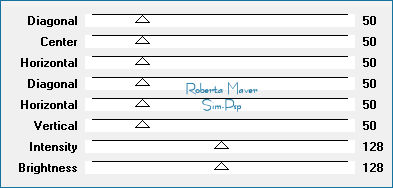
Selections > Invert.
Effects > 3D Effects > Drop Shadow: 0, 0 , 100, 50 >
Color black (#000000).
Selections > Select None.
18 - Image> Resize:
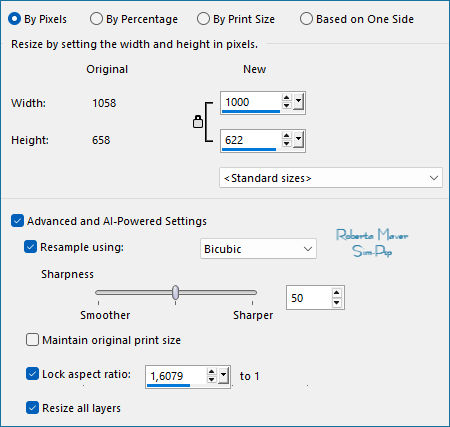
19 - Edit > Copy from the Main Tube.
Edit > Paste As New Layer.
Image > Resize, if necessary. On the material's tube,
48% was applied
Position it on the left.
Apply Drop Shadow as you prefer.
20 - Edit > Copy from the Decor03_Melody_byRobertaMaver file.
Edit > Paste As New Layer.
With the Pick Tool, position it at: Position X: 641 - Position
Y:
9
21 - Edit > Copy from the Titulo_byRobertaMaver
Edit > Paste As New Layer.
Position it as you prefer.
Effects > 3D Effects > Drop Shadow: 2, 1, 100, 0, Color:
#000000
22 - Image > Add Borders: 1 px - color: Background #15729e
23 - Edit > Copy from the
Credito-TradByMarcinha file:

Edit >
Paste As New Layer and position it wherever you prefer.
Apply your watermark or signature.
File > Export > JPEG Optimizer...
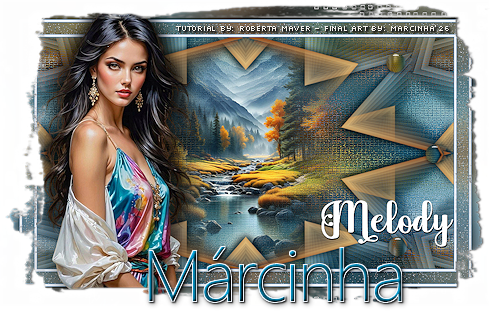
Credits:
Formatting, Final Artwork, and English Translation by
Márcinha
Tutorial by
Roberta Maver
-
Prints by
Roberta Maver
Main Tube and
Misted Landscape: Tubes by Roberta Maver
VERSION:
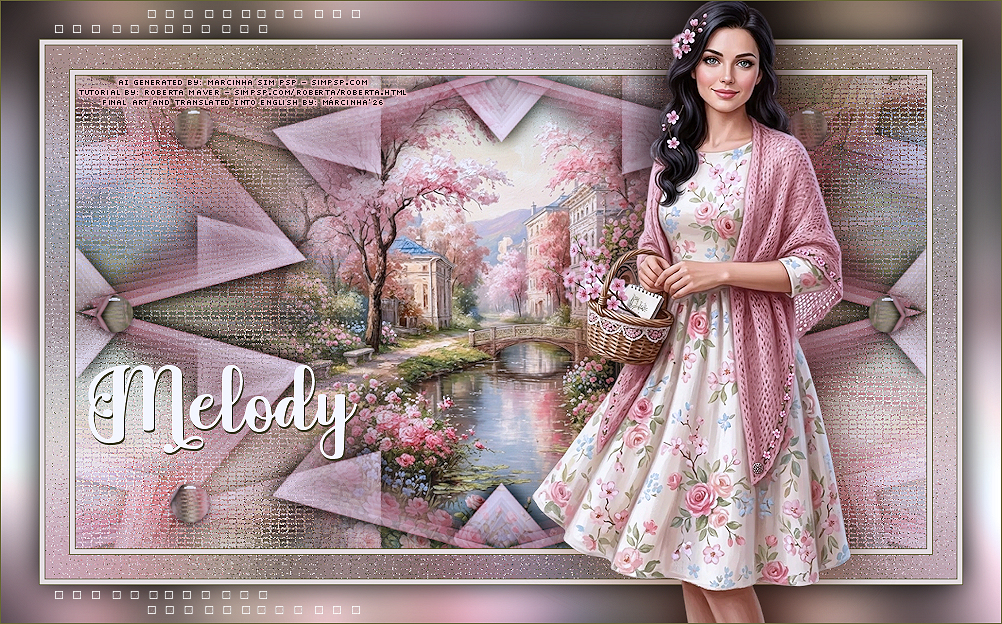
Version credits:
Formatting, Final Artwork, and English Translation by
Márcinha
Tutorial by:
Roberta Maver -
Main Tube and Misted: AI-generated by
Marcinha (SIM PSP)
Prints by
Roberta Maver
Feel free to send in your versions.
I will be delighted to publish them on our website.
Send your version to the e-mail:
robertamaver@gmail.com
SimPSP Social Media


|
This tutorial was created by Roberta
Maver in August 2026, exclusively for
the website: https://simpsp.com
Tutorial tested, reviewed and translated
into English by Márcinha
in September 2026.
The content of this tutorial is the sole
responsibility of the author.
Sim PSP only hosts and shares it for
promotional purposes.
Partial or full reproduction is prohibited without proper
authorization from the author.
Respect the credits and encourage the creation of new
content! |
|