|
Translated Into English
by Márcinha
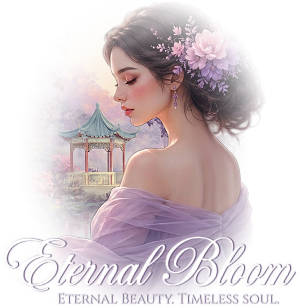
SUPPLIES: 1 Main Tube of your choice. 1 Misted Landscape of your choice. Other Materials by Marcinha
* Save the Selections in the PSP Selection folder; * Double-click on the Glass Preset: Glass_Tuto22_byMarcinha to import the effect into the Impact > Glass plugin;
PLUGINS: FM Tile > Blend Emboss Graphics Plus > Emboss MuRa's Filter Meister > Perspective Tiling Bkg Designer sf10II >
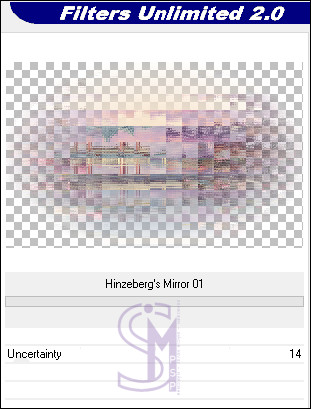
Hinzeberg’s Mirror 01
Tutorial created in PSP 2020 Tested and reviewed by Soxikibem in PSP 2022.
I would like to thank the
tube artists for providing the tubes and masks, as without them this
work would not have been possible.
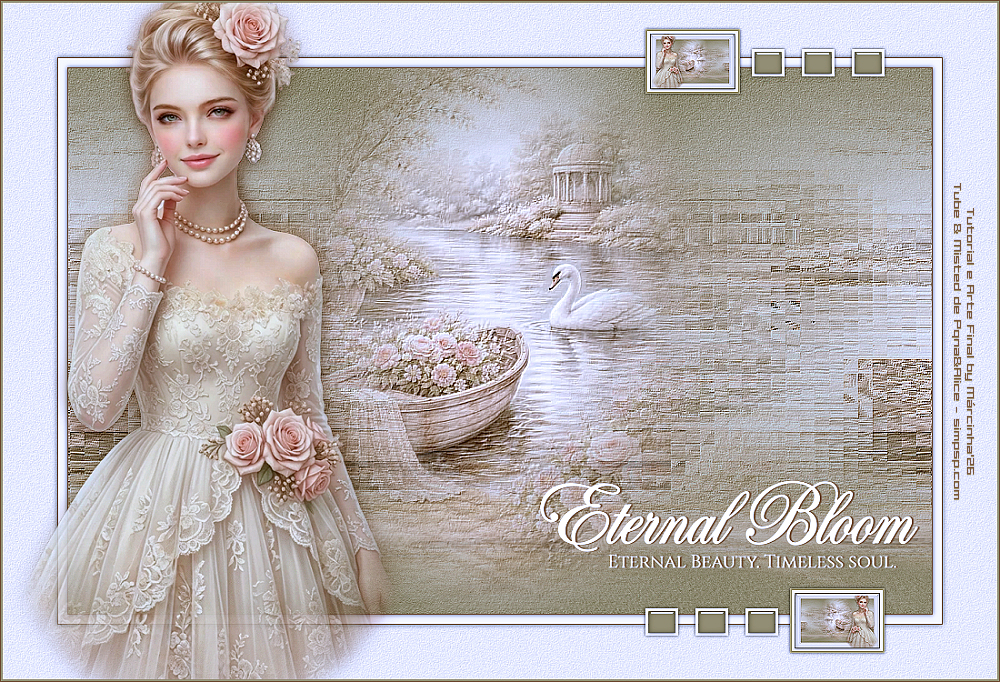
1- Open the material in PSP, duplicate it, and close the originals.
*Remove
the watermark from all supplied materials.
2- Open a transparent image, 950 x 600 px. Fill with color 1: #8c6bb1
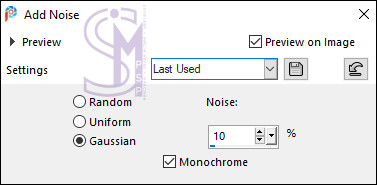
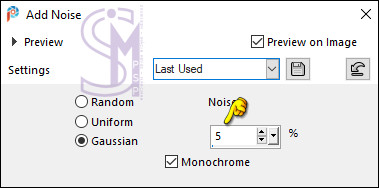
3- Adjust > Add/Remove Noise > Add Noise:
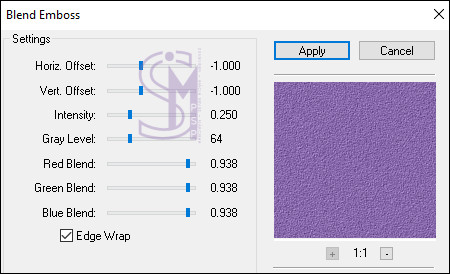
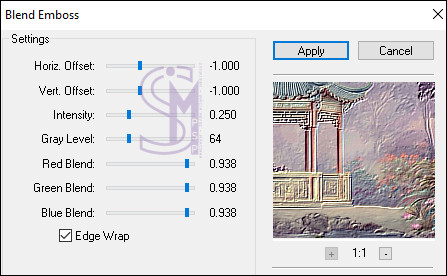
Effects > Plugins > FM Tile > Blend Emboss:
4- Layers > New Raster Layer. Selections > Select All.
5- Activate the 231PaisagemByPqnaAlice file. Edit > Copy. Go back to the image we are working on... Edit > Paste Into Selection. Selections > Select None. Adjust > Sharpness > Sharpen More.
6- Effects > Plugins > Bkg Designer sf10II > Hinzeberg’s Mirror 01:
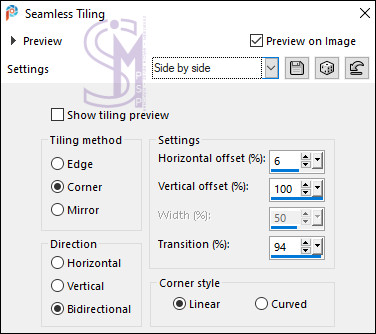
7- Effects > Image Effects > Seamless Tiling: Side by side
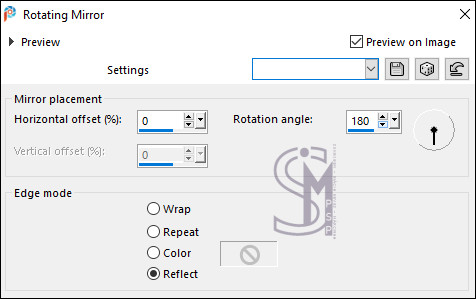
Effects > Reflection Effects > Rotating Mirror:
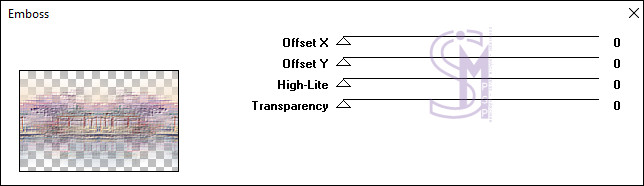
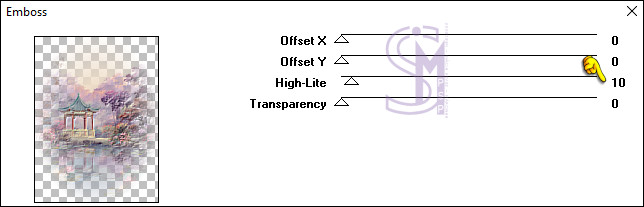
8- Layers > Properties > General > Opacity: 75% Effects > Plugins > Graphics Plus > Emboss:
9- Edit > Copy Special > Copy Merged. Edit > Paste As New Layer.
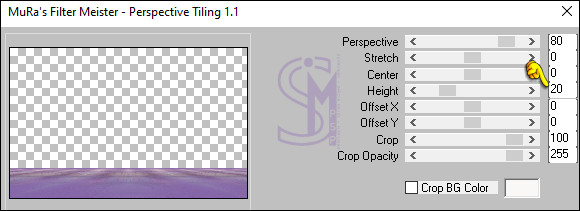
10- Effects > Plugins > MuRa's Filter Meister > Perspective Tiling:
11- Activate the Magic Wand Tool > Tolerance: 0 and
Feather: 50,
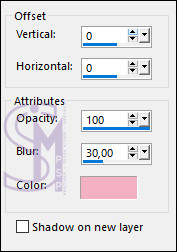
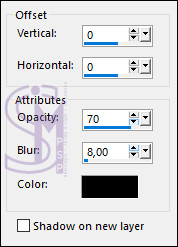
12- Effects > 3D Effects > Drop Shadow: color: color 2: #f3b0c3
13- Activate the misted file again. Edit > Copy. Go back to the image we are working on... Edit > Paste As New Layer. Image > Resize: 55%, all layers unchecked. Objects > Align > Bottom.
14- Effects > Plugins > Graphics Plus > Emboss:
15- Image > Add Borders > Symmetric: 1 px with color 2. Selections > Select All.
16- Image > Add Borders > Symmetric: 10 px with color 4. Effects > 3D Effects > Drop Shadow: color 5: #000000
Selections > Select None.
17- Image > Add Borders > Symmetric: 1 px with color 2. Selections > Select All.
18- Image > Add Borders > Symmetric: 60 px with color 4. Selections > Invert.
19- Adjust > Add/Remove Noise > Add Noise:
20- Effects > Plugins > FM Tile > Blend Emboss:
21- Selections > Invert. Effects > 3D Effects > Drop Shadow: color 5: #000000
Selections > Select None.
22- Activate the tube 1590MulherByPqnaAlice Edit > Copy. Go back to the image we are working on... Edit > Paste as New Layer. Image > Resize, if needed. It was not applied to the tube used in the material. Adjust > Sharpness > Sharpen. Objects > Align > Left.
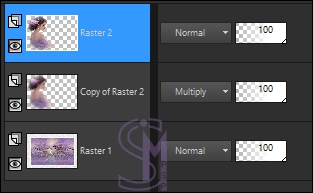
23- Layers > Duplicate. Adjust > Blur > Gaussian Blur: 10 Layers > Properties > General > Blend Mode: Multiply. Layers > Arrange > Move Down. Activate the Raster 2 layer.
24- Image > Add Borders > Symmetric: 2 px with color 2. Image > Add Borders > Symmetric: 1 px with color 1. Edit > Copy.
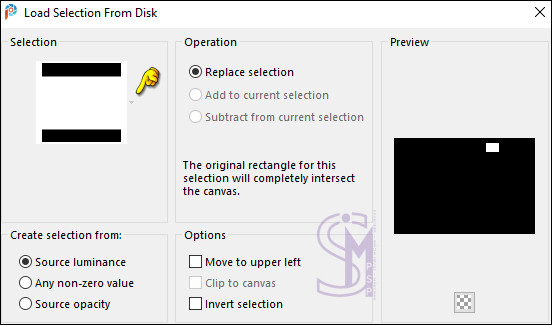
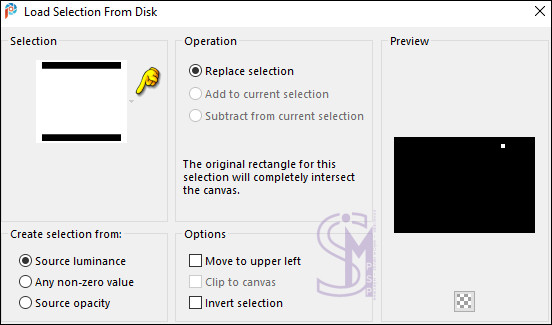
25- Selections > Load/Save Selections > Load Selection From Disk: Sel01_Tuto22_byMarcinha
26- Layers > New Raster Layer. Set up the Flood Fill Tool in Color mode:
Fill the selection with color 2.
27- Selections > Modify > Contract: 2 Fill the selection with color 4.
28- Selections > Modify > Contract: 3 Edit > Paste Into Selection. Adjust > Sharpness > Sharpen.
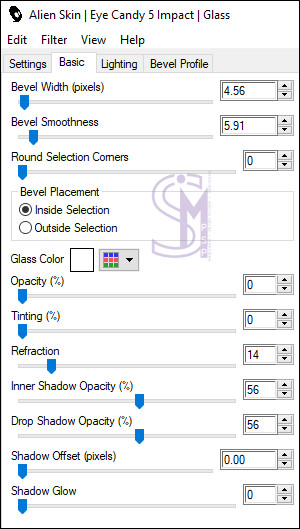
29- Effects > Plugins > Alien Skin Eye Candy 5 > Impact > Glass: In Settings choose > Glass_Tuto22_byMarcinha or set up the Basic tab as shown below:
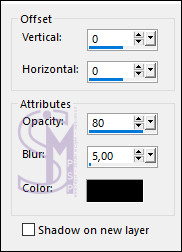
30- Selections > Select None. Effects > 3D Effects > Drop Shadow: color 5: #000000
31- Selections > Load/Save Selections > Load Selection From Disk: Sel02_Tuto22_byMarcinha
32- Layers > New Raster Layer. Fill the selection with color 4.
33- Selections > Modify > Contract: 3 Fill the selection with color 1. Effects > Plugins > Alien Skin Eye Candy 5 > Impact > Glass:
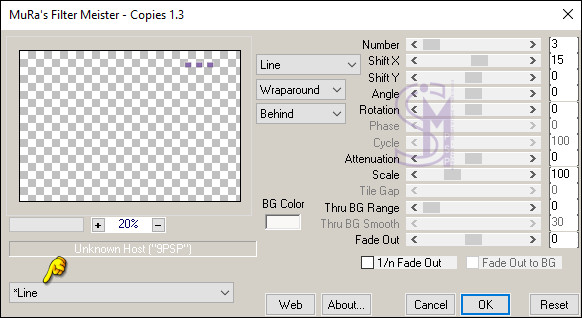
34- Selections > Select None. Effects > Plugins > MuRa's Meister > Copies:
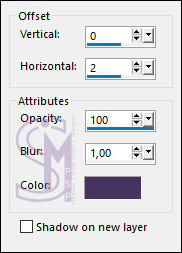
Effects > 3D Effects > Drop Shadow: color 5: #000000
35- Layers > Merge > Merge Down. Layers > Duplicate. Image > Mirror > Mirror Vertical. Image > Flip > Flip Vertical. Image > Flip > Flip Horizontal. Layers > Merge > Merge Down.
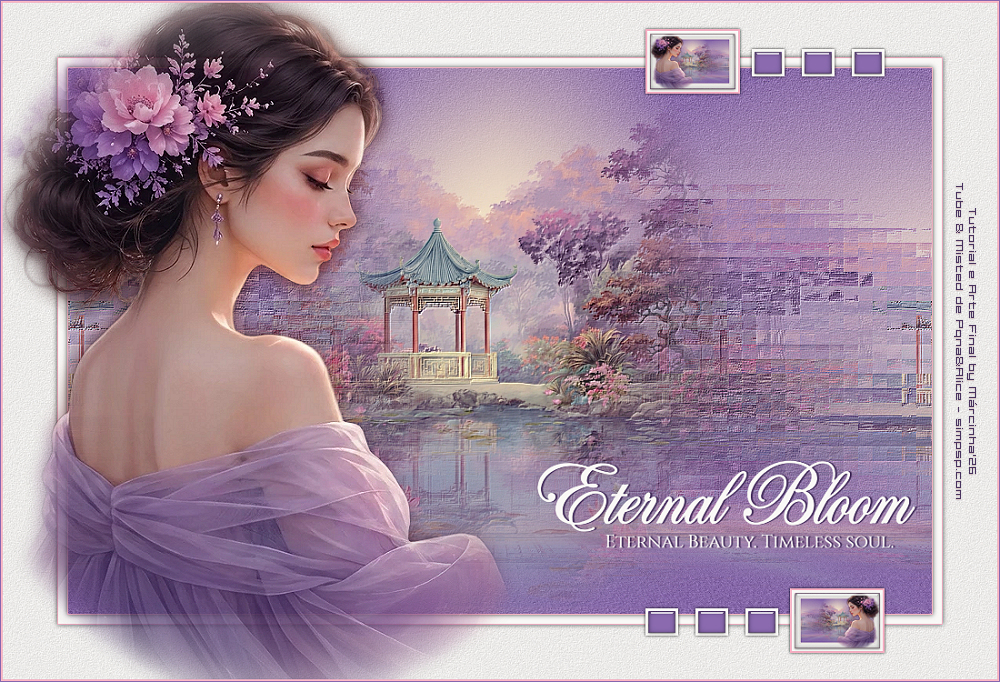
36- Activate the titulo_EternalBloom file. Edit > Copy. Go back to the image we are working on... Edit > Paste As New Layer. Position it to the right. Effects > 3D Effects > Drop Shadow: with color 3.
Image > Resize > By Pixel > Width: 1000 px, resize all layers checked. Adjust > Sharpness > Sharpen.
38- Edit > Copy on Credit-Tutorial_byMarcinha.
Layers > Merge > Merge All.
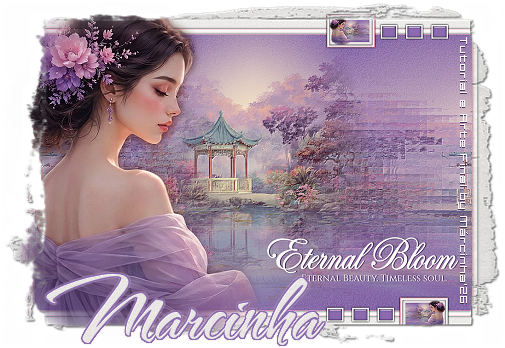
We have reached the end of this tutorial.
VERSION:
Credits: Formatting, Final Art and Tutorial by Márcinha Tube and Misted: Tubed by Pqna&Alice - Other Materials by Márcinha Brazil - Içara (SC), 08/31/26 Version Credits: Main Tube and Misted: Tubed by Pqna&Alice
Feel free to send in your versions. I would be delighted to publish them on our site.
Send your version to the email: marcinha.simpsp@gmail.com
SimPSP Redes Sociais
|